Assistants
See which assistants the app found on your computer, choose the one new conversations start with, and tell the app where one is kept.
On this page
Conversations and Brim run on assistants that you installed on your computer. The Assistants screen shows each one and what to do about it. Your AI account explains why you install and sign in to them yourself.
Open the screen
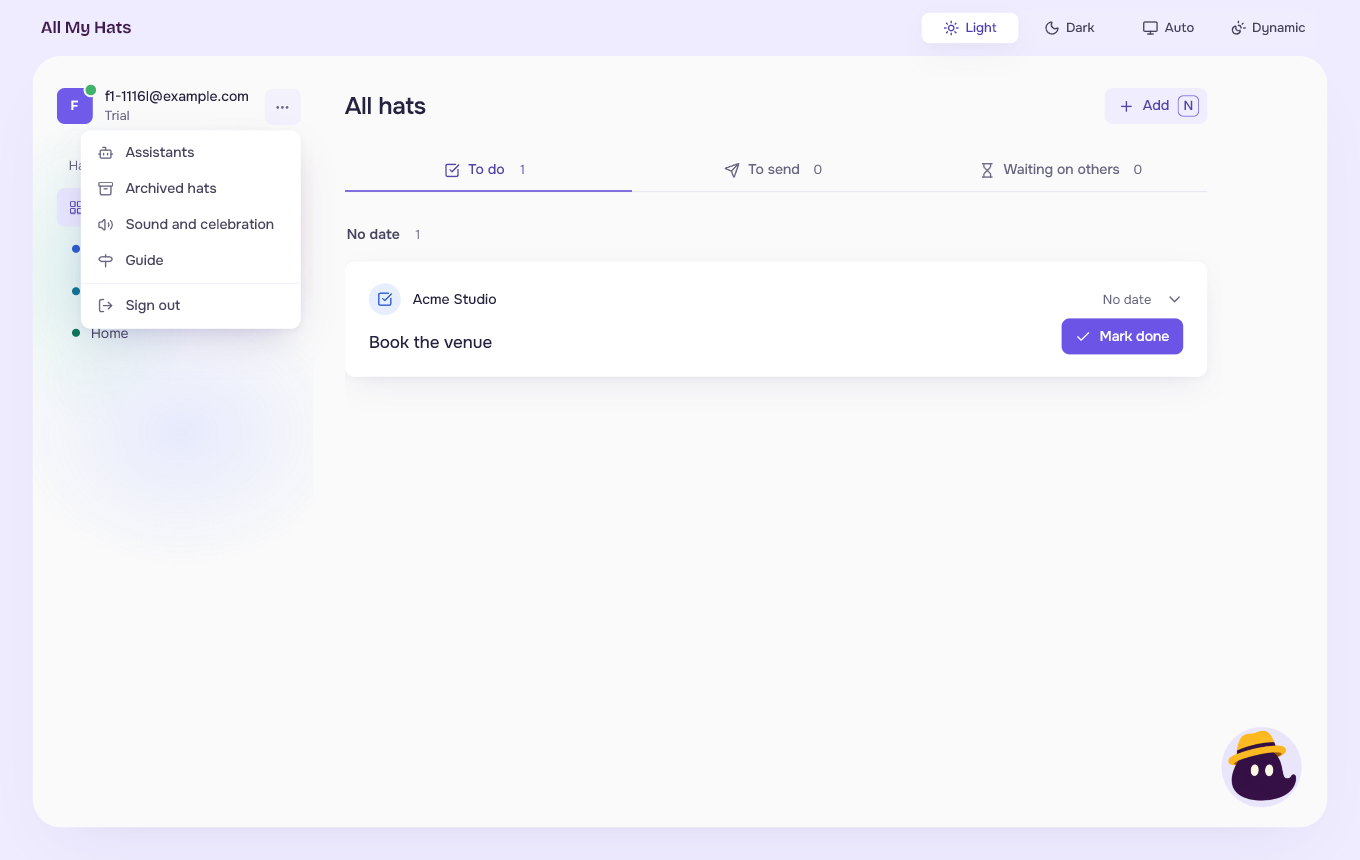
- Press the three dots beside your email at the top left.
- Choose Assistants.
 Enlarge
Press Back to return to where you were. The screen also opens from a button called Open Assistants that shows on the screens that tell you an assistant is missing.
What the screen shows
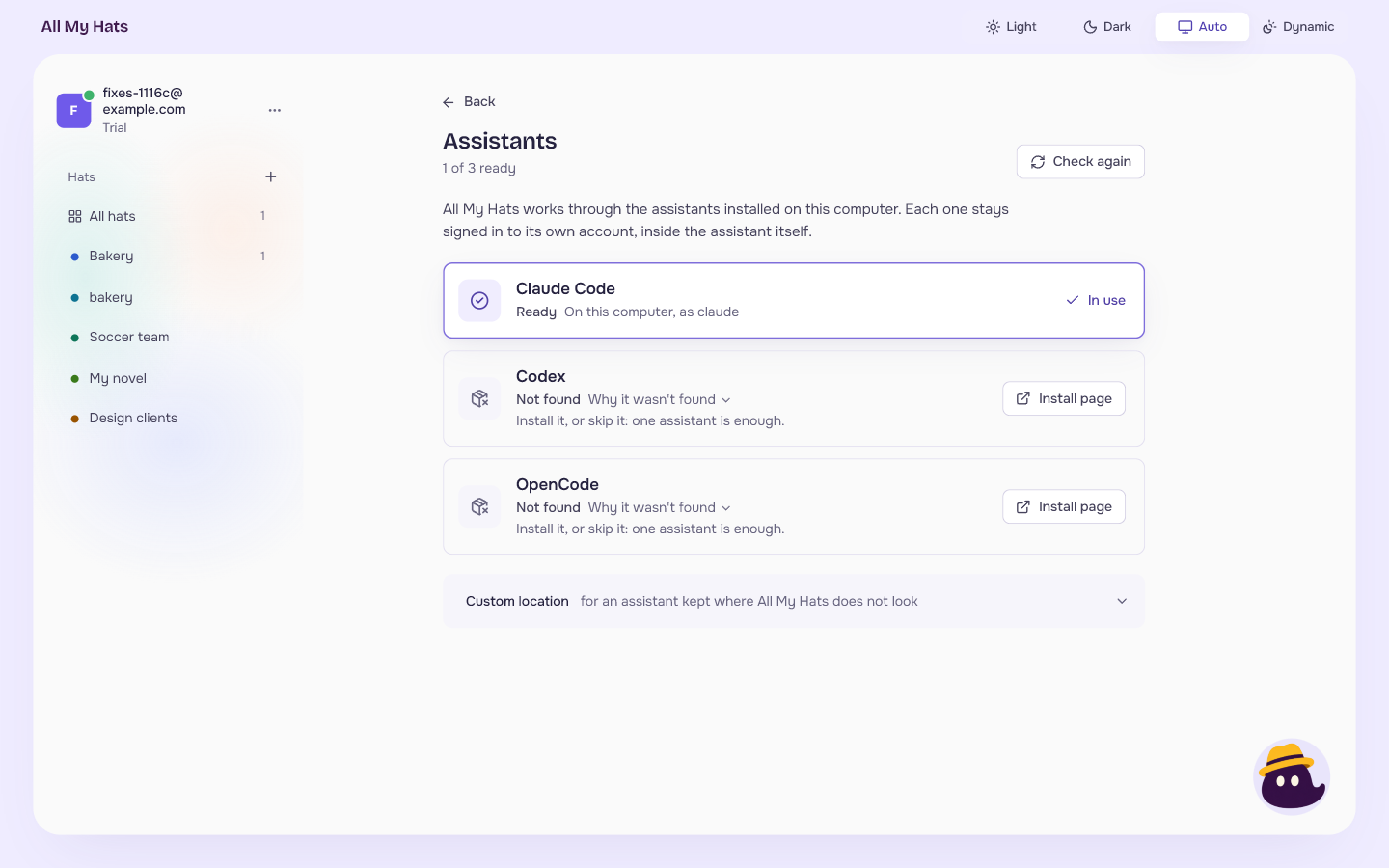
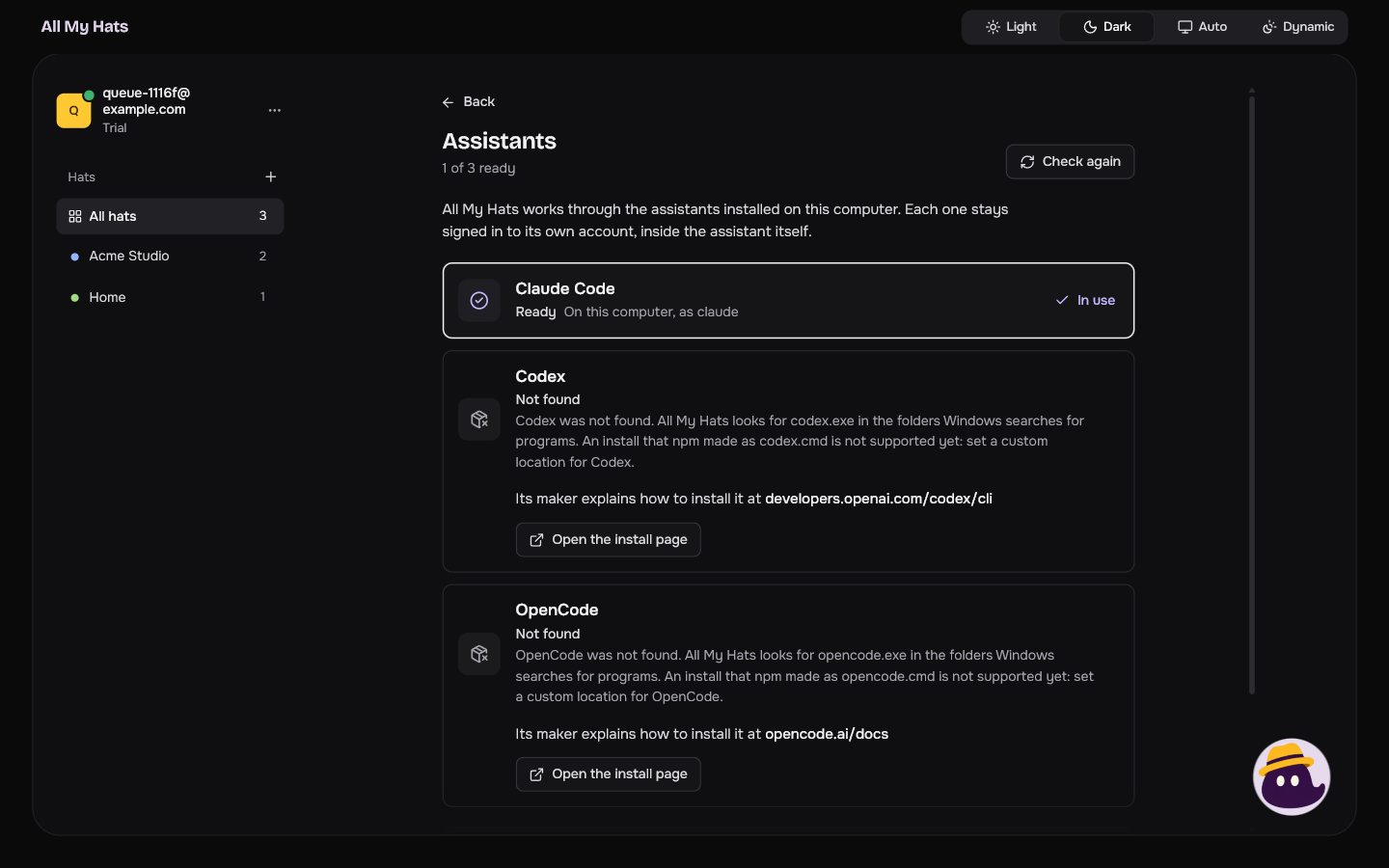
The screen lists Claude Code, Codex and OpenCode. Under the title, one line says how many are ready: "Looking on this computer" while the app searches, "None is ready yet", "1 of 3 ready", "2 of 3 ready" or "All 3 are ready". Check again searches again.
 Enlarge
 Enlarge
Each assistant has one of these states:
| State | What it means |
|---|---|
| Looking for it | The app is searching for it. |
| Ready | It starts on this computer. Beside it, the app says where it found it: "On this computer, as claude", or "At the location you set". |
| Signed out | The assistant itself said it is signed out. |
| Not found | It is not on this computer, or not where the app looks. |
The app can tell that an assistant starts. It cannot tell that the assistant is signed in until the assistant says so in a conversation. That is why Signed out appears only after that.
Under a ready assistant that is not the one in use, Use it makes it the one that new conversations start with. The one in use says In use. When more than one is ready, New conversation lists the one in use first. See Conversations under a hat.
An assistant that is signed out
The card says "Sign in inside" followed by the assistant's name, "itself. Run this in a terminal, then check again." Below it is the command to run. Copy it, run it in a terminal, sign in inside the assistant, then press Check again.
The app never asks for a password, key or token of an assistant, and has no place to type one.
An assistant that is not found
The card says "Install it, or skip it: one assistant is enough." Beside the name, Install page opens the assistant maker's install page in your browser. Install the assistant, then press Check again.
Press Why it wasn't found for the details. On Windows, it says that the app looks for the assistant's program, for example codex.exe, in the folders Windows searches for programs, and that an install npm made as a .cmd file is not supported yet. It also gives the address of the install page. For an npm .cmd install, and for any assistant kept somewhere the app does not look, use a custom location.
Custom location
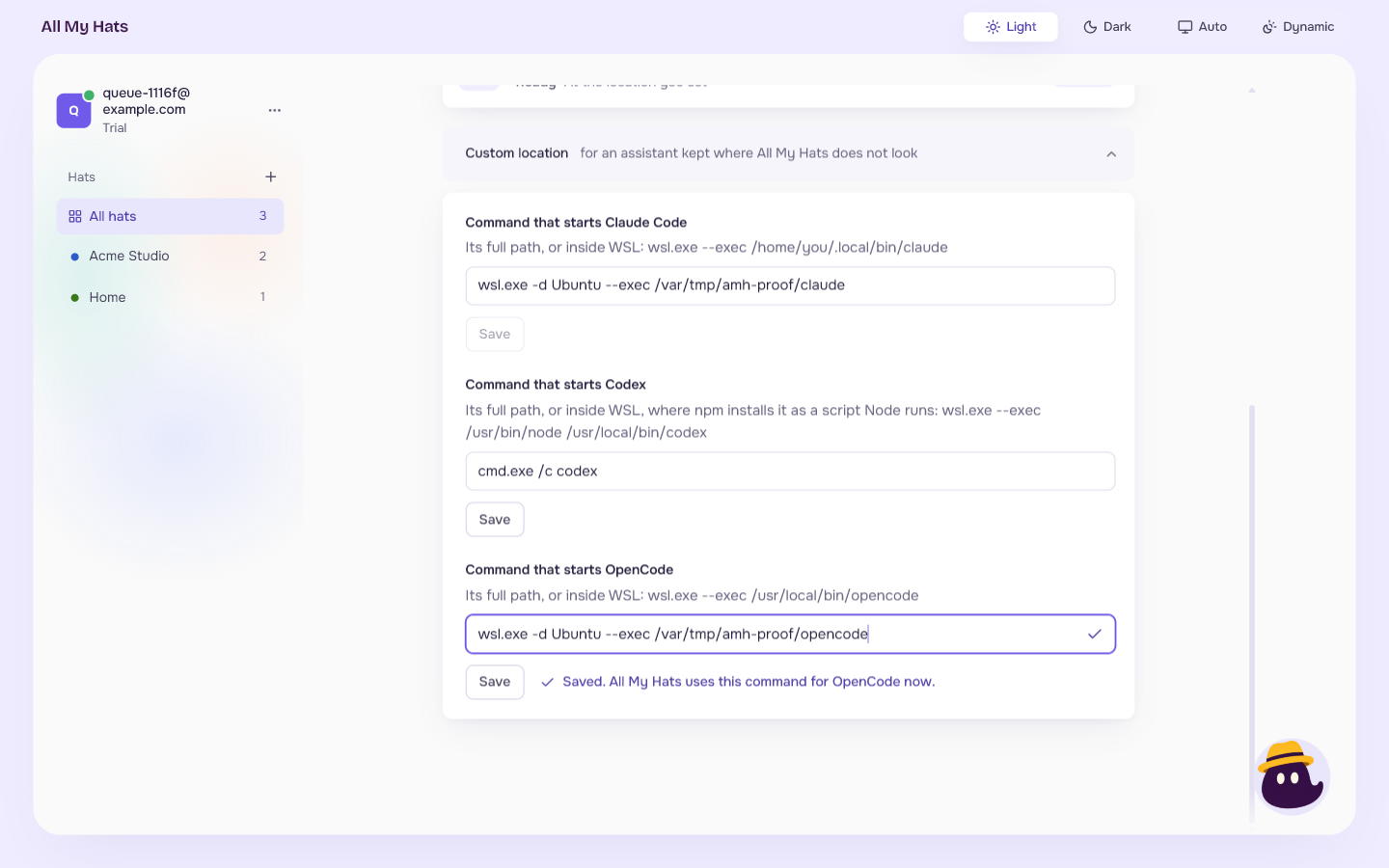
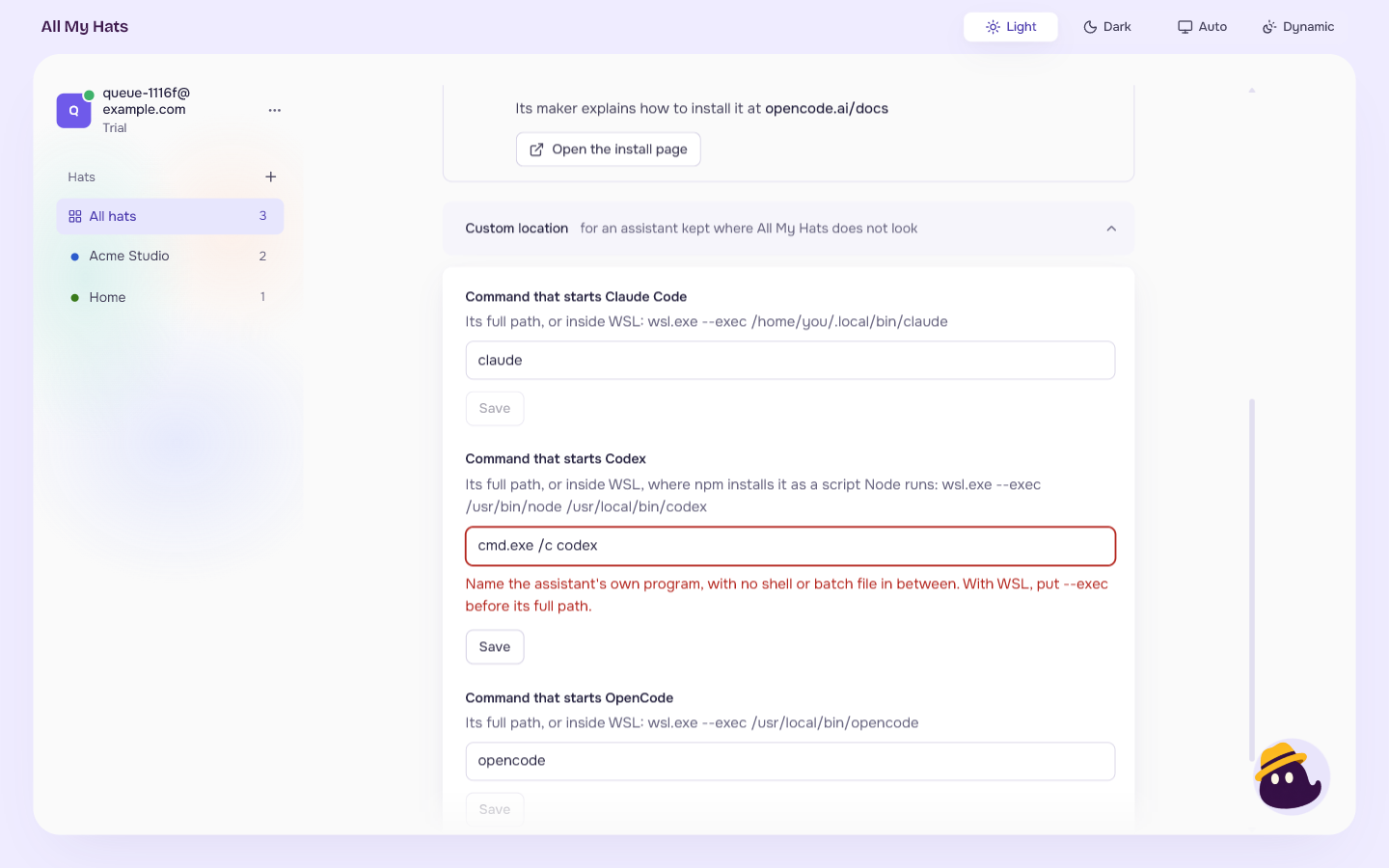
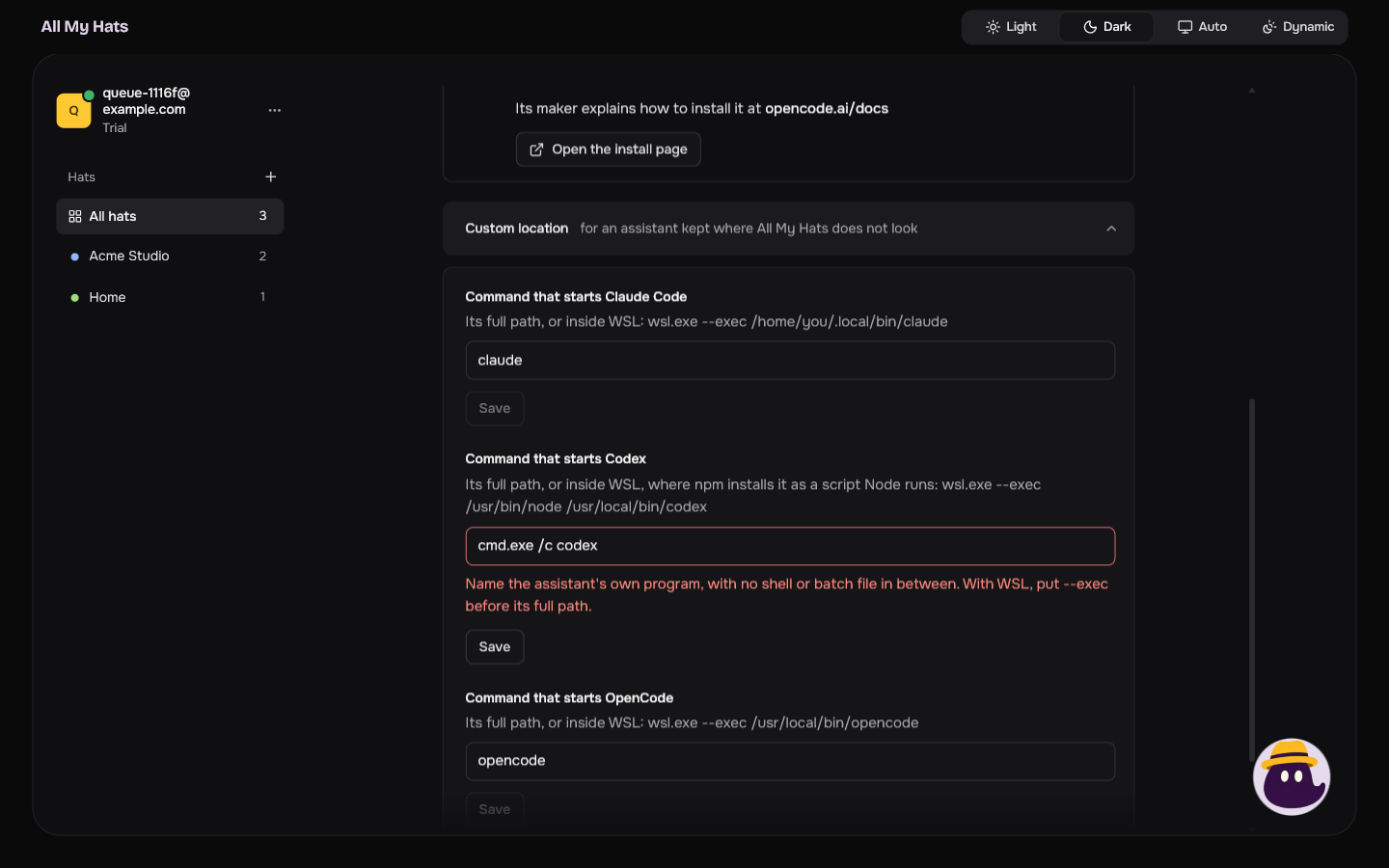
Custom locations are on the Assistants screen only, not in the guide. Press Custom location to open one field for each assistant, named "Command that starts" followed by the assistant's name. Each says how to write it. For an assistant inside WSL, the command starts with wsl.exe and puts --exec before the assistant's full path, for example wsl.exe --exec /home/you/.local/bin/claude. Codex installed with npm inside WSL is a script that Node runs, so its command names Node first and then the script: wsl.exe --exec /usr/bin/node /usr/local/bin/codex.
- Type the command in the field.
- Press Save.
 Enlarge
The field says "Saved. All My Hats uses this command for" followed by the assistant's name and "now", and the app looks for the assistant again. The card then says "At the location you set".
The app refuses a command that puts a shell or a batch file between it and the assistant, such as cmd.exe /c codex. The field says "Name the assistant's own program, with no shell or batch file in between. With WSL, put --exec before its full path."
 Enlarge
 Enlarge
The command is kept in a settings file on this computer. It is not part of your account, and it holds no password or key.
Brim
Brim answers through Claude Code only. When Brim cannot find it, its card has an Open Assistants button. Make Claude Code Ready here, then ask again. See Brim can't answer.
If something does not work, see When an assistant is not found, cannot start or is signed out.