Your queue
Keep what you have to do, what you have to send and what you are waiting on from others, under each hat. Mark items done, move them and take either back.
On this page
The queue is where you keep your own items. Each one sits under a hat and is one of three kinds:
- To do is something you have to do.
- To send is something you have to send, with its text kept ready to copy.
- Waiting on others is something another person owes you, with the day to nudge them.
 Enlarge
 Enlarge
Where the queue is
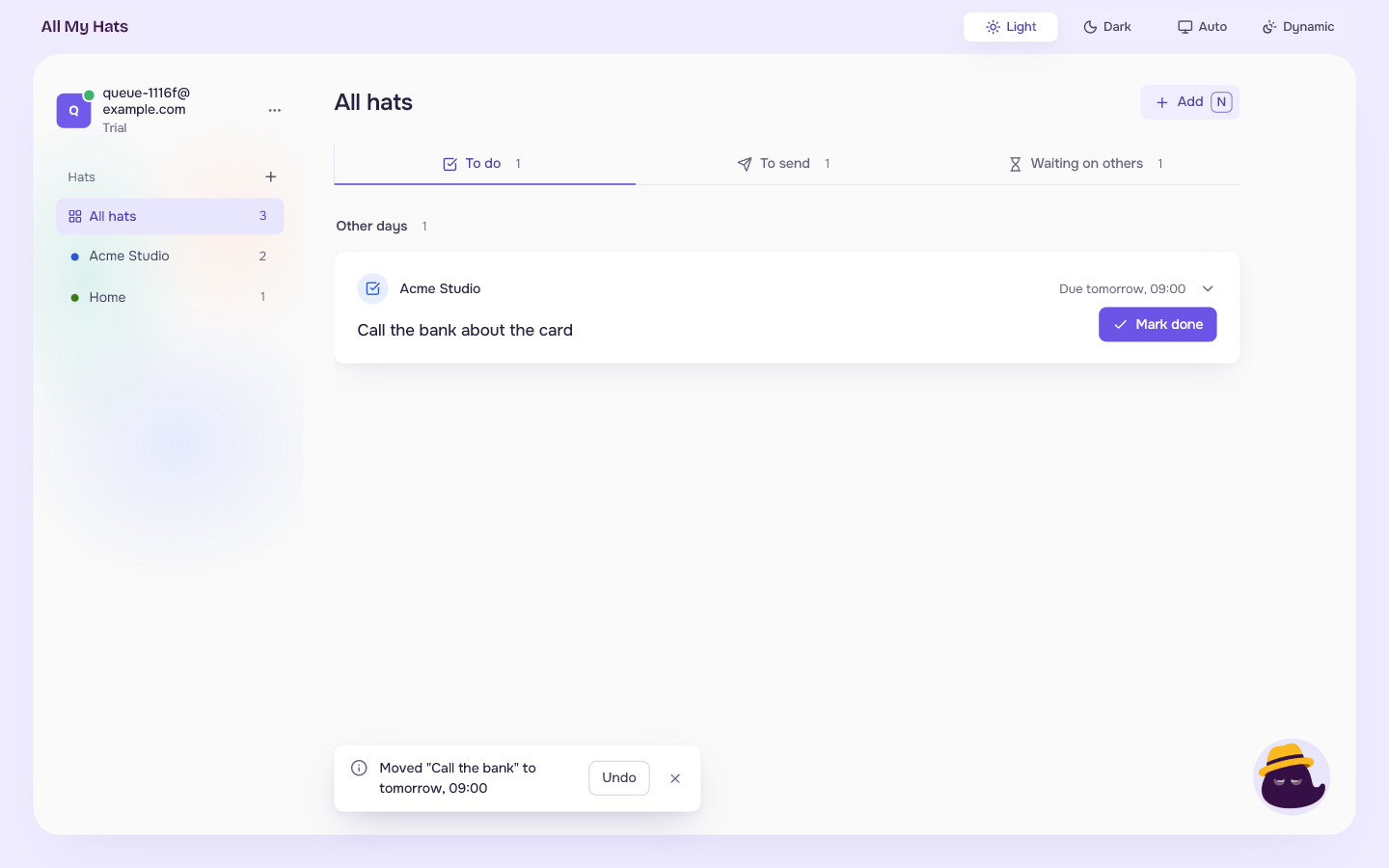
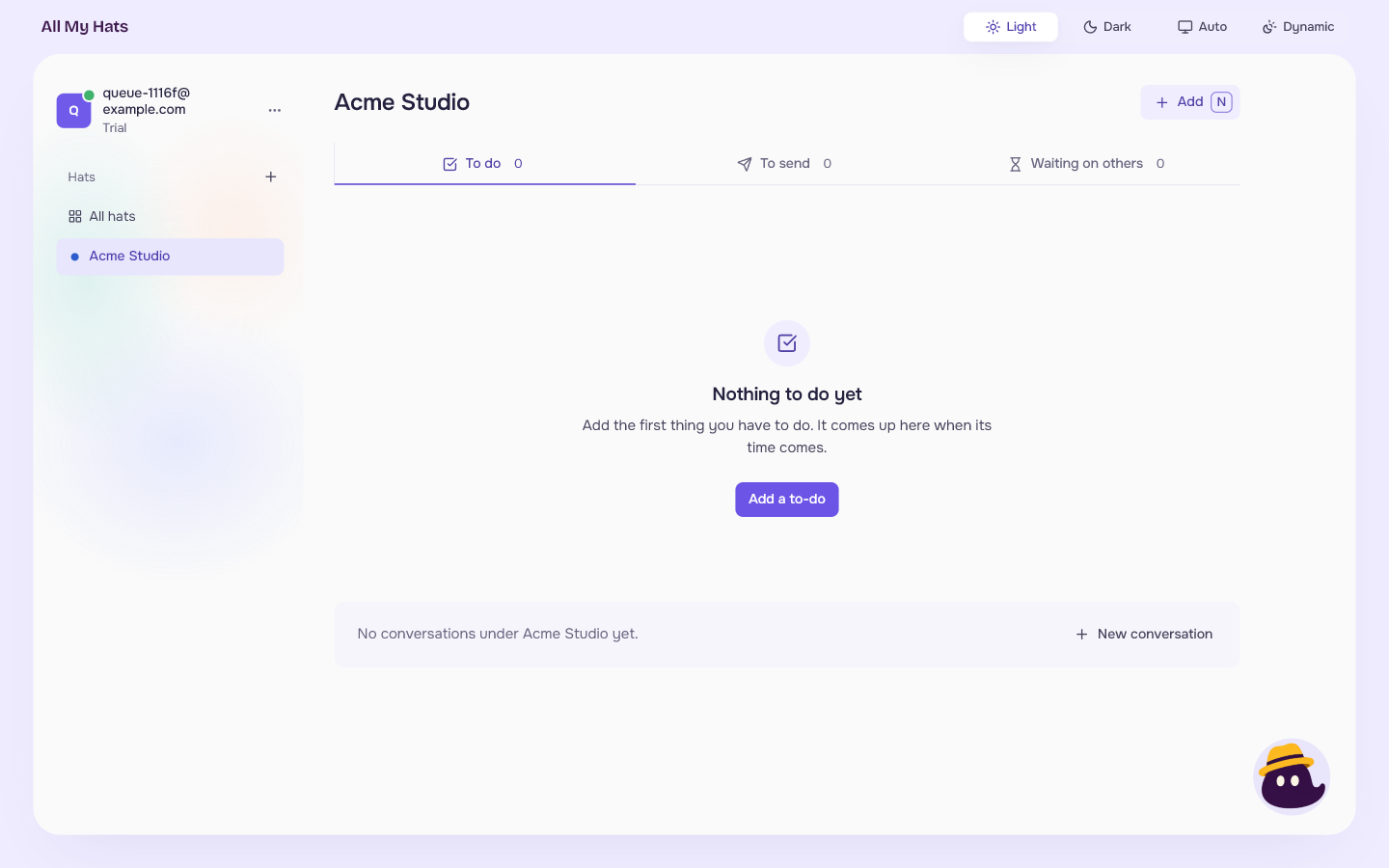
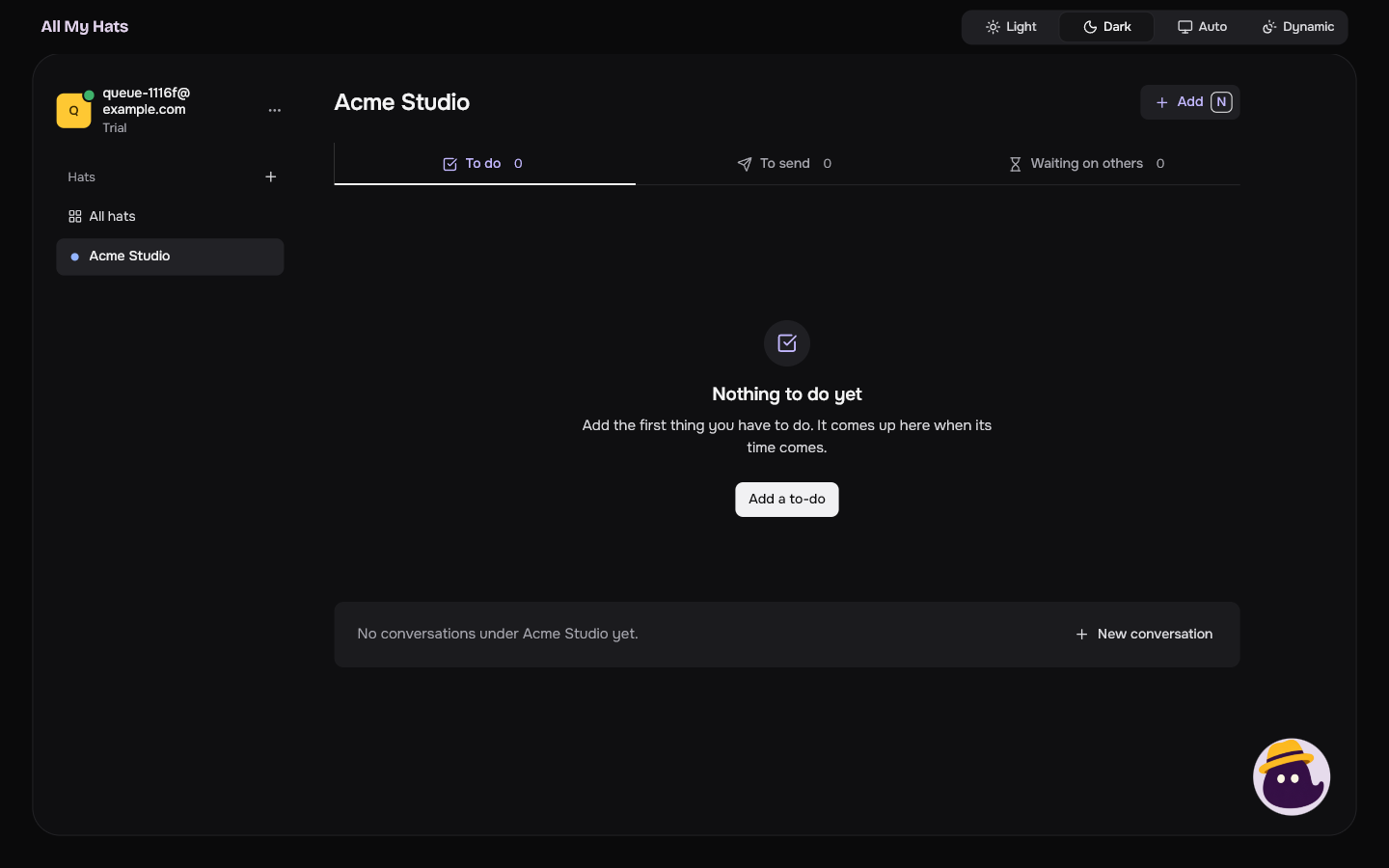
All hats shows your items from every hat. Click a hat and the middle shows the conversations of that hat that wait on you under Needs you, when there are any, then that hat's items, with the items of any hat inside it, and then its other conversations. When conversations follow, an empty queue is one line, "Nothing to do yet.", with Add a to-do. A tour of the main screen shows where each part sits.
The queue has three tabs: To do, To send and Waiting on others. The number beside each tab is how many open items it holds. A tab with nothing in it while another has items says "Nothing to do right now.", "Nothing to send right now." or "You are not waiting on anyone right now." The same tab on a queue with nothing at all explains itself, for example Nothing to do yet, and has a button: Add a to-do, Add something to send or Add a wait.
 Enlarge
 Enlarge
Under each tab, items are grouped by when they come up, soonest first:
| Group | What it holds |
|---|---|
| Now | Items whose time has come, today or on an earlier day. They stay here until you mark them done or move them. |
| Later today | Items due later today. |
| Other days | Items due on a later day. |
| No date | Items without a date. |
A to-do or a thing to send that is past its day carries a mark such as "1 day late" or "3 days late". A wait never does: it comes back up on the day you chose to nudge.
The number beside a hat
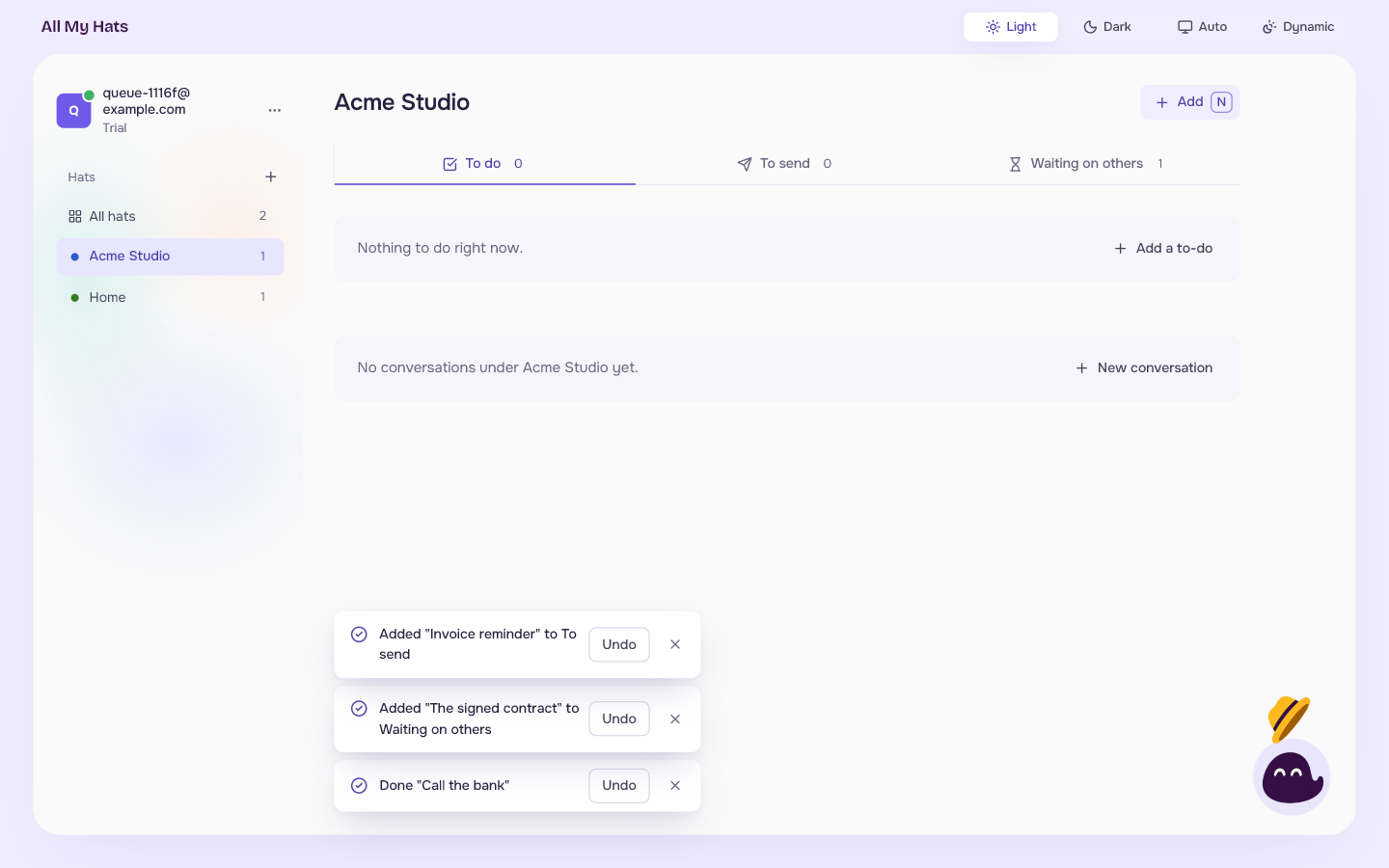
The number at the right of a hat in the list on the left is how many open items it holds. A hat with hats inside it counts theirs too. All hats counts everything. A hat with nothing open shows no number. When you mark an item done, the number goes down.
Add an item
- Press Add at the top of the queue, or press the N key. N works anywhere on the screen except while you are typing in a field or have a dialog open. On an empty tab, the button in the middle does the same.
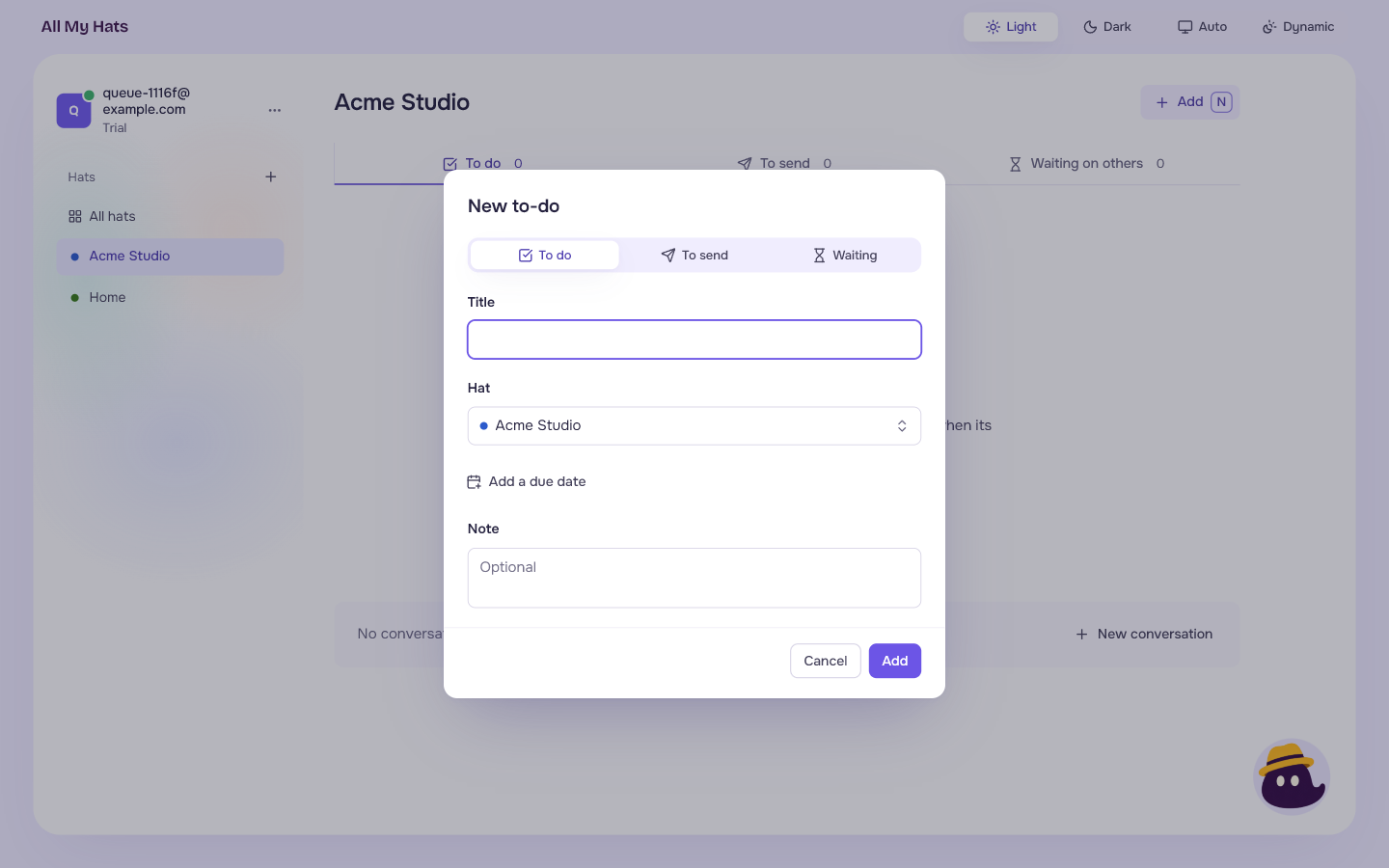
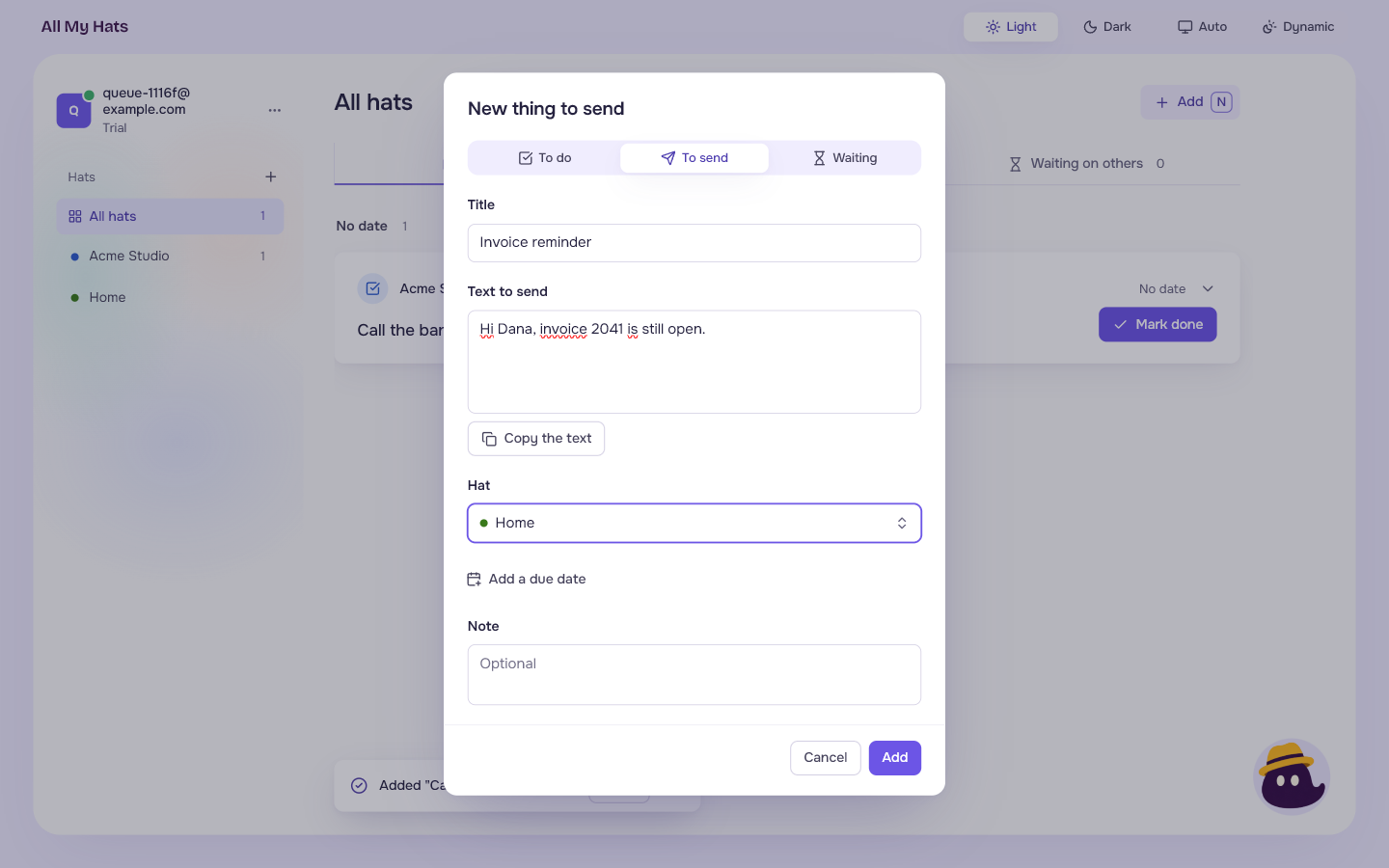
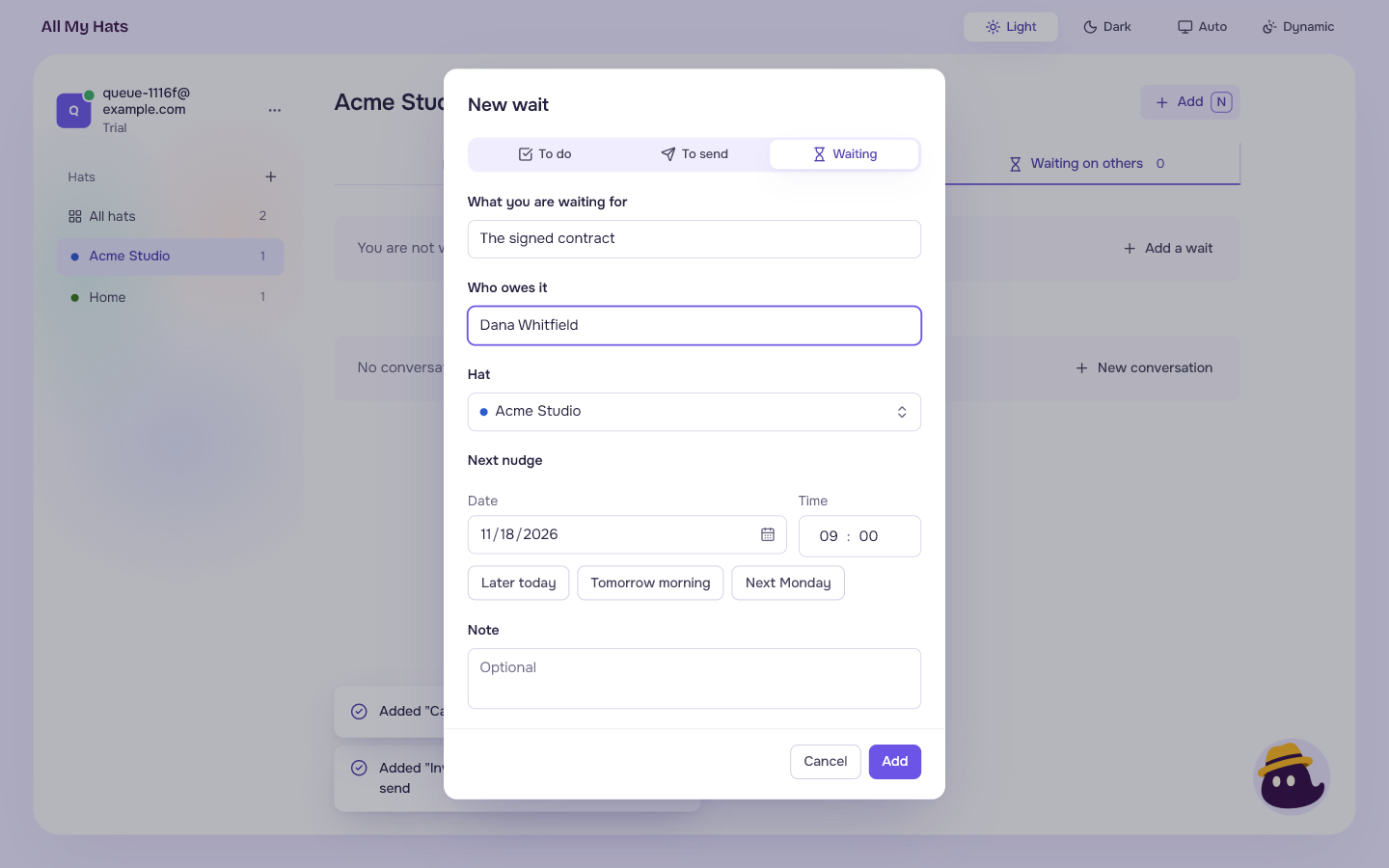
- At the top of the dialog, pick the kind: To do, To send or Waiting. The dialog is named after it: New to-do, New thing to send or New wait. It starts on the tab you were looking at.
- Fill in the fields below.
- Press Add.
 Enlarge
Every kind has a Title, a Hat and a Note, which is optional. The hat starts as the one you are wearing, and is empty on All hats. In the Hat field you can type a few letters of the hat's name and press Enter. The field takes the hat that matches. The title can be up to 200 characters, the note up to 2000.
- A To do has an optional date. Press Add a due date to give it one, and No due date to take it off.
- A To send has the same optional date, and Text to send, up to 10,000 characters, which you write now or later. Copy the text copies it.
- A Waiting calls the title What you are waiting for, and adds Who owes it, up to 80 characters, and Next nudge, the day and time the item comes back up. It starts two workdays ahead, at 09:00.
 Enlarge
 Enlarge
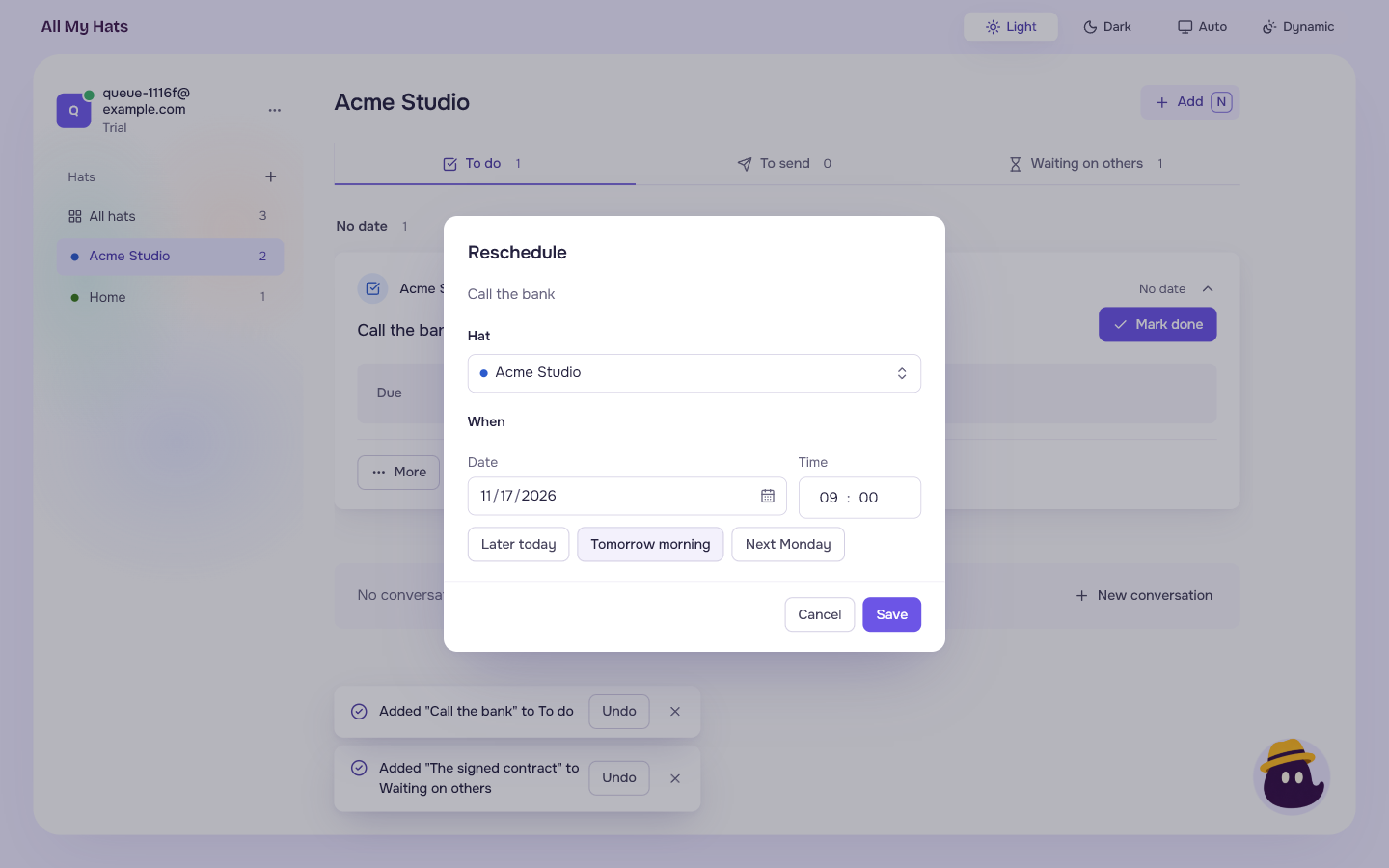
Beside every date and time field, Later today, Tomorrow morning and Next Monday fill it in for you.
If something is missing, the dialog says what: "Give it a title.", "Choose a hat for it.", "Say who you are waiting on." or "Choose when to nudge." A title, note, name or text that is too long gets "Keep the title to 200 characters. This one has" followed by its length.
When the item is added, a message at the bottom of the window says for example Added "Call the bank" to To do, with Undo. The keyboard moves to the new item's card, so you can keep going without reaching for the mouse.
Open an item
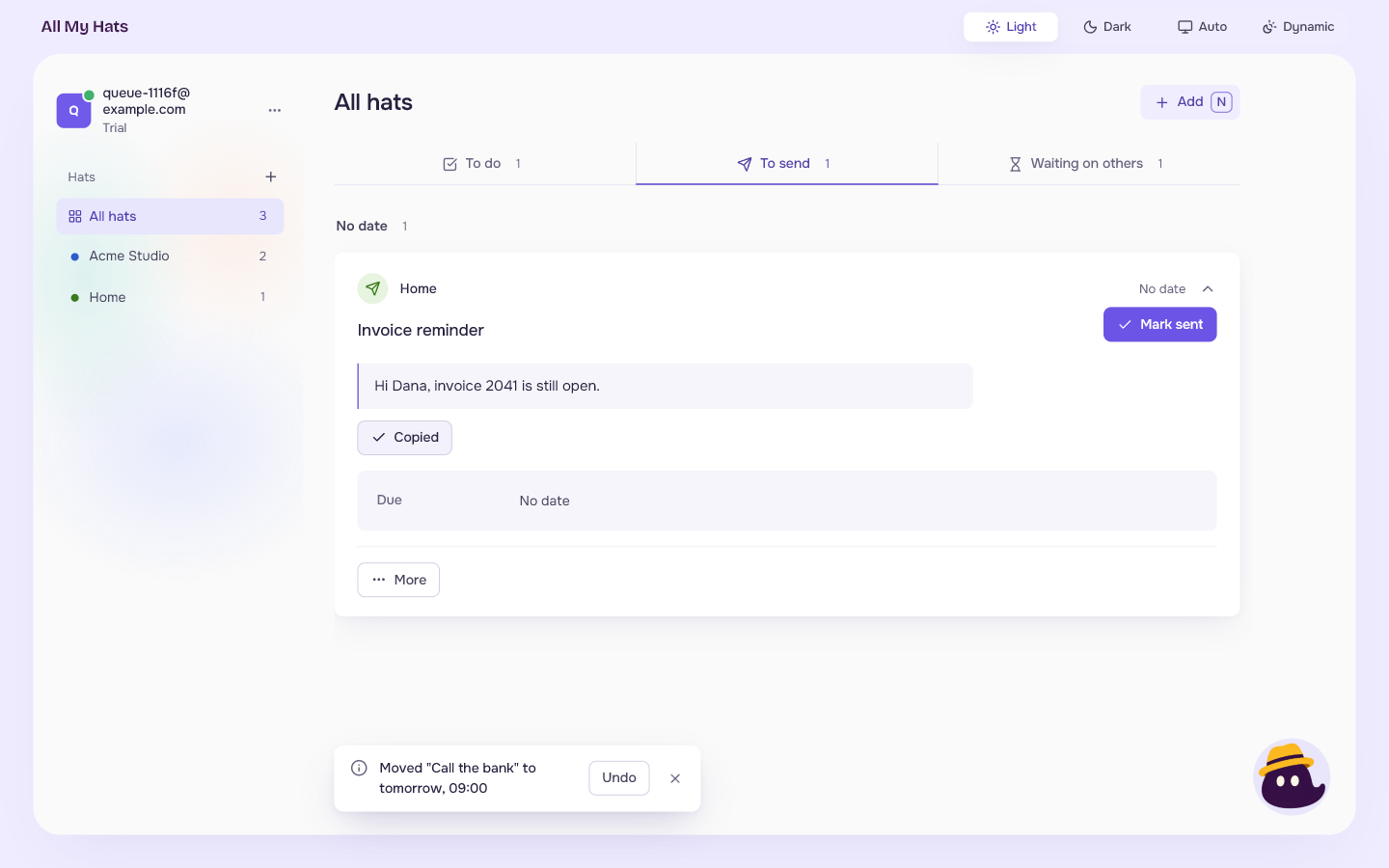
Click an item to open it. It shows its text and note and:
- Due with the date, for a to-do and a thing to send.
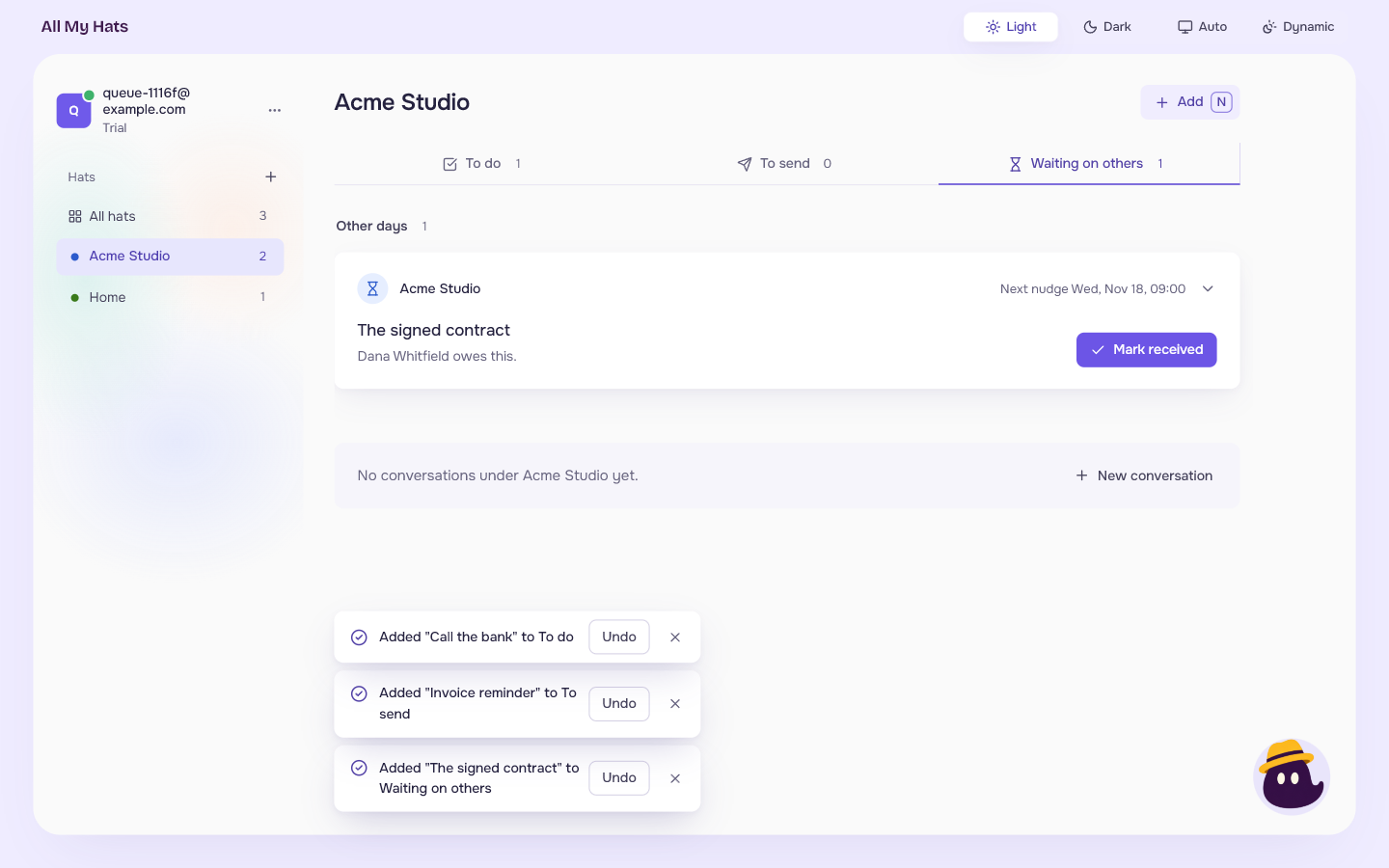
- Waiting on with the name, and Next nudge with the date, for a wait.
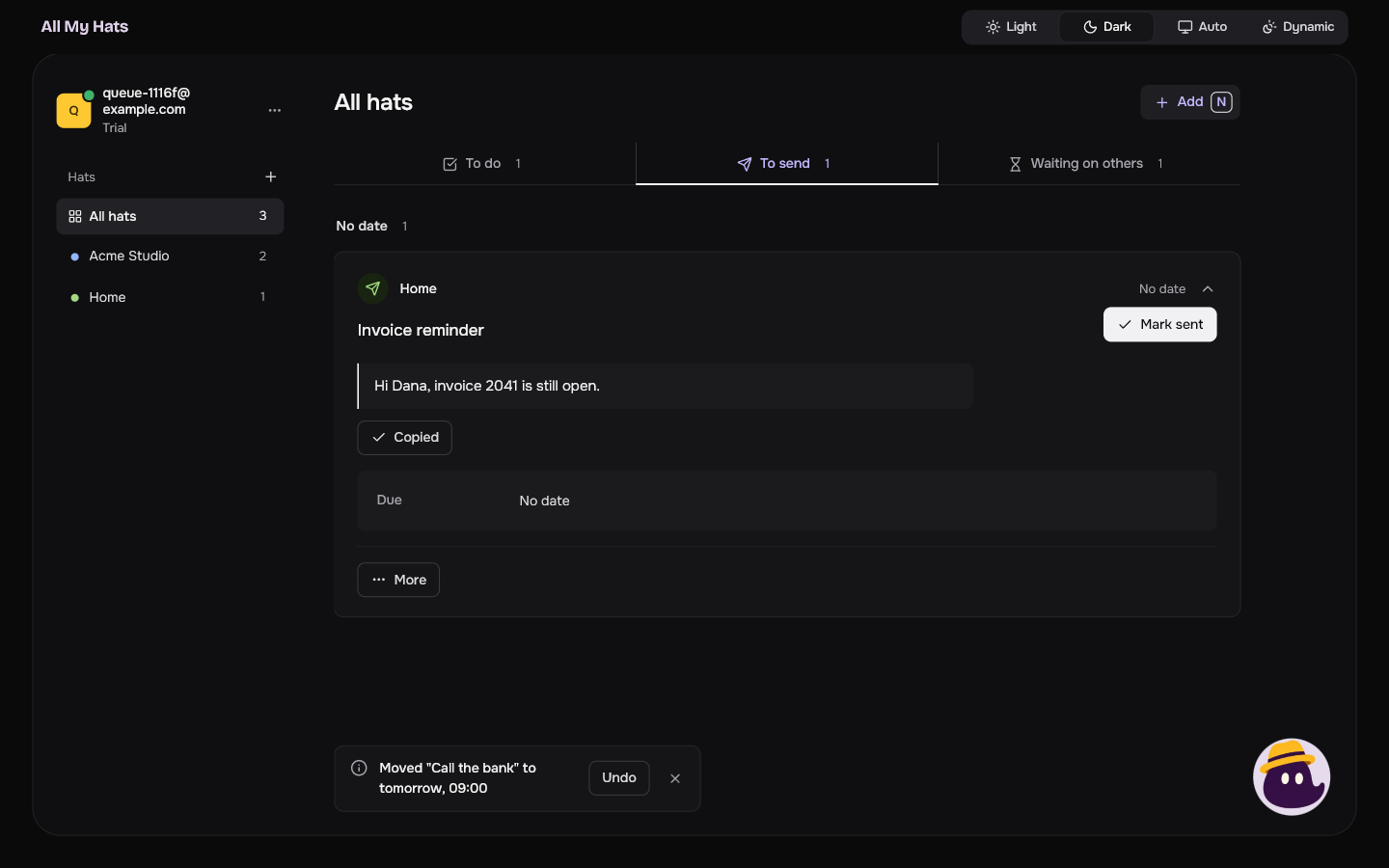
A thing to send shows its text with a Copy the text button. The button reads Copied for a moment, and the text is on your clipboard.
 Enlarge
 Enlarge
 Enlarge
Mark an item done
The button on each item says what fits its kind: Mark done, Mark sent or Mark received. The item leaves the queue and a message says Done "Call the bank", Sent "Invoice reminder" or Received "The signed contract". Press Undo to put it back.
 Enlarge
Change an item or move it
Press More on an open item for two choices.
- Edit opens the item with its own title, for example Edit to-do, and Save. You can change everything except its kind.
- Reschedule opens Reschedule with the item's name, a Hat and a When. You can move the item to another day, another time or another hat. For a wait, When is its next nudge. Save moves it. Without a day and time, the dialog says "Choose a day and a time."
 Enlarge
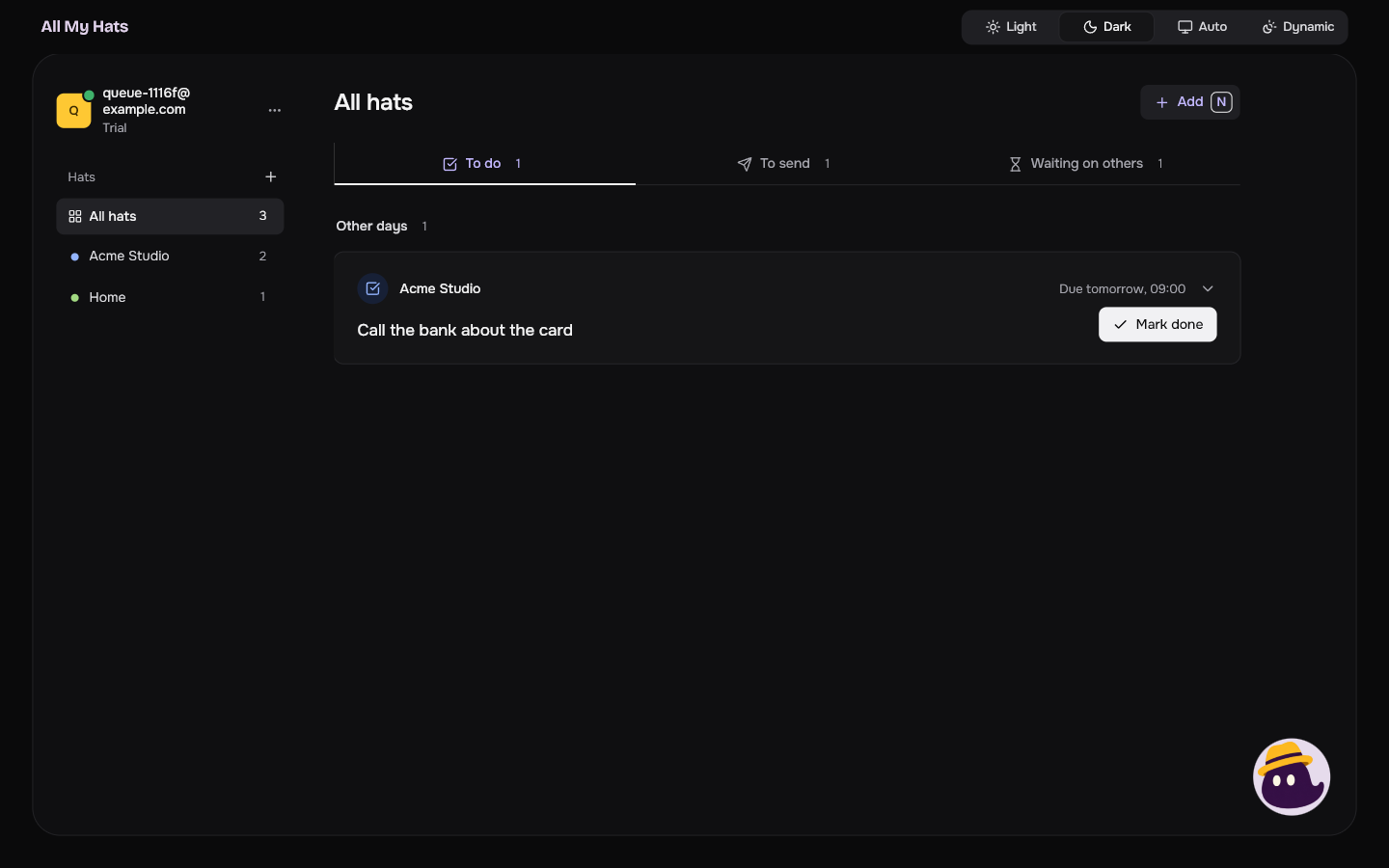
After a move, a message says for example Moved "Call the bank" to tomorrow, 09:00, with Undo.
Your items stay on this computer
Items are kept on your computer, not on the All My Hats server. Close the app and open it again, and they are there with their changes. If some files on this computer cannot be read, the app says so and shows the rest. If the queue cannot be read at all, the screen says Your queue could not be read and has Try again.
When you archive a hat, its items go with it, and they are not counted while it is archived. They come back when you bring the hat back. See Your hats.